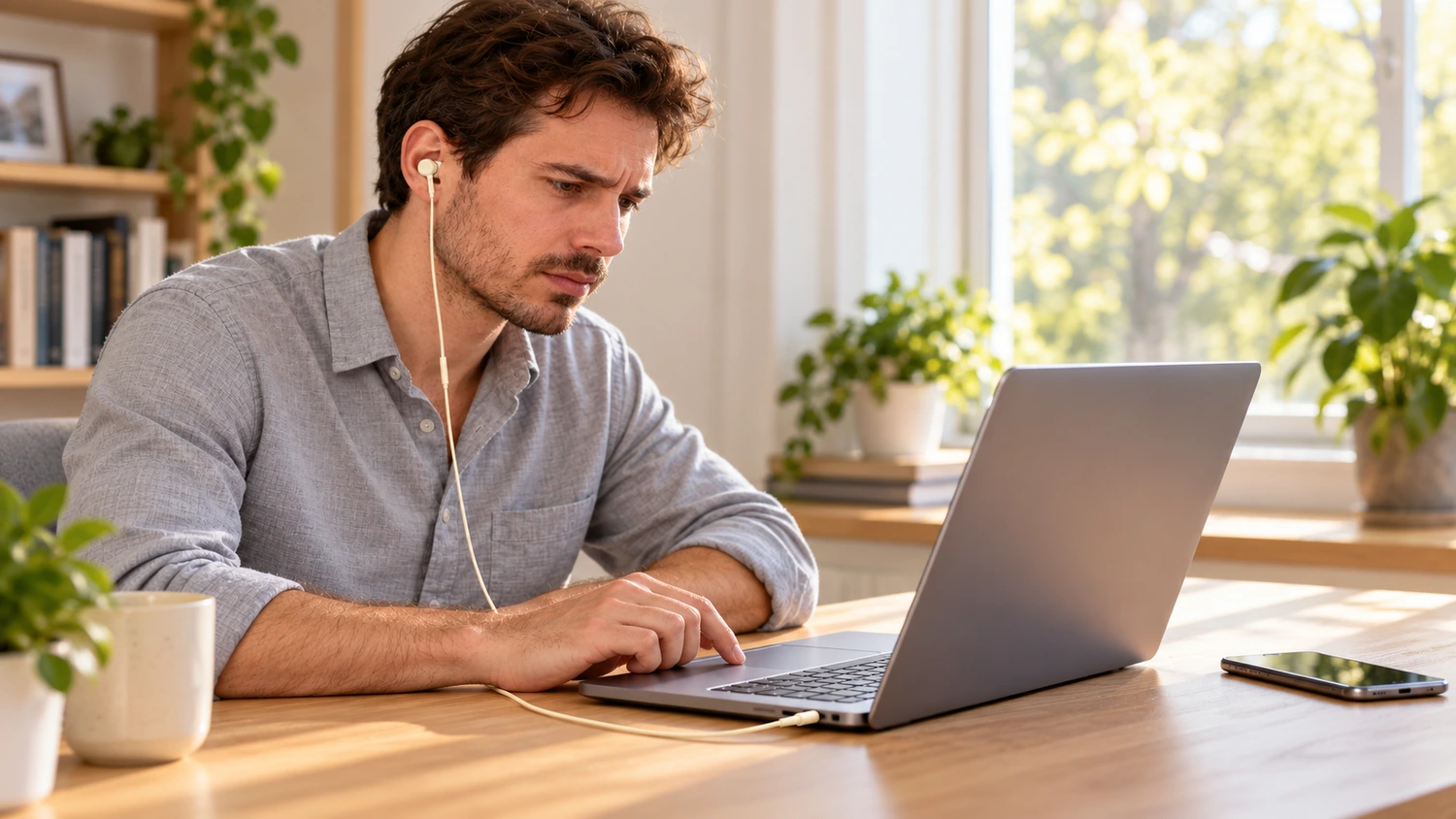
When wired earbud samples produce no sound after you plug them in, first establish whether the issue lies with the earbuds, the playback device, or the connection between them. Replacing the earbuds may leave you with the same silence. If switching to another phone restores sound, you still need to check whether the port or adapter changed at the same time.
Yinshidon’s wired earphones come in different connector versions. When checking these samples, we recommend confirming the connection first, checking the audio output next, and then testing the earbuds and the device separately with compatible alternatives. This narrows down what needs investigation instead of leaving you with a vague conclusion that the earbuds do not work.
First, Check That the Plug and Connections Are Fully Seated
Start with the connector in your hand: is it a round 3.5 mm plug or a USB-C plug? Do the earbuds connect directly to a phone or computer, or is there an adapter in between? If you use an adapter, check both connections: earbuds to adapter and adapter to device.
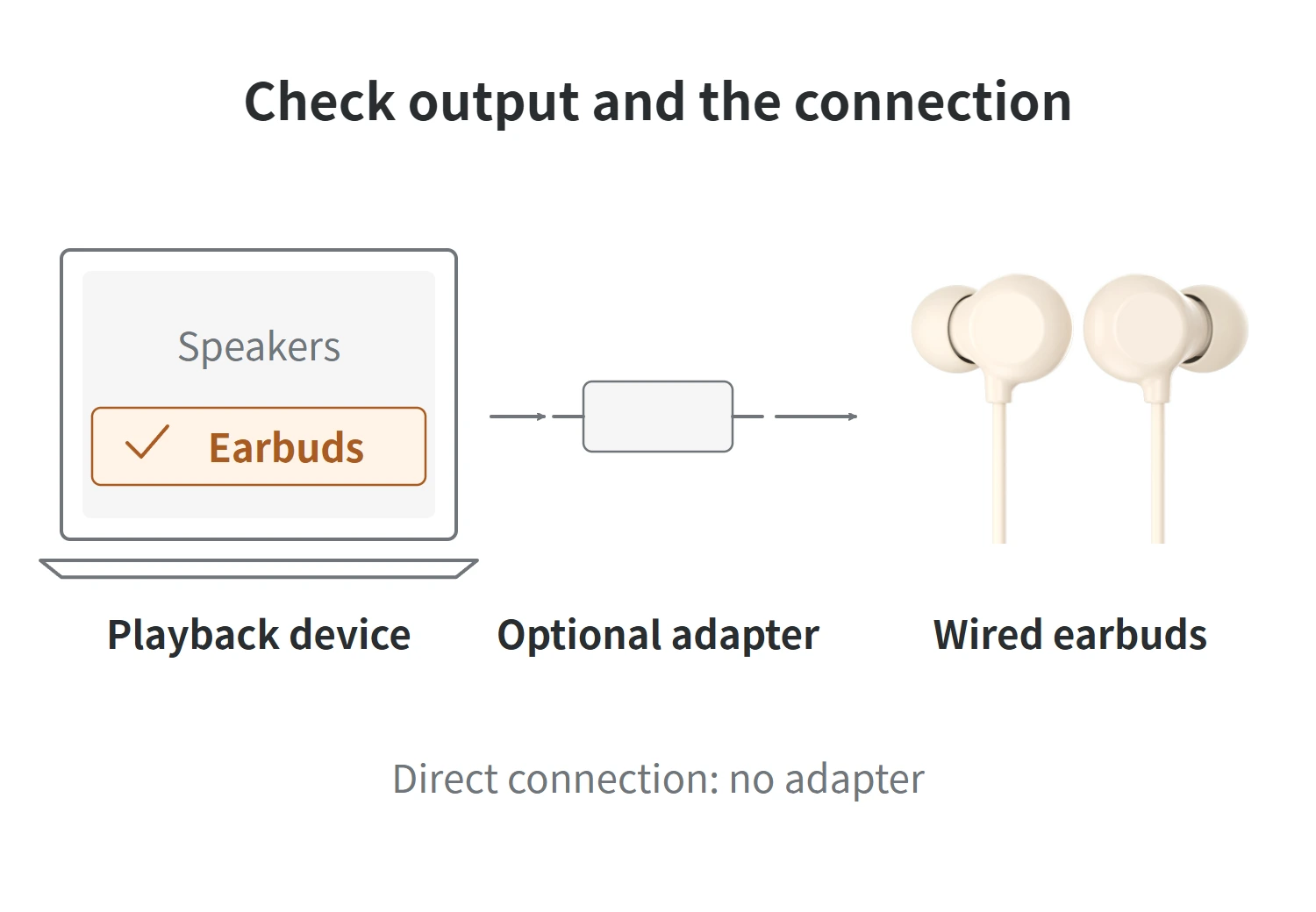
Pause playback and lower the volume before checking the connection. Hold the plug and insert it firmly again. If a protective case prevents the plug from seating fully, remove the case and try again. Do not pull on the cable to unplug it or force a plug that meets resistance.
Also inspect the cable, plug, inline controls, and earpieces for wear, cracks, or deformation. If there is debris in the port, follow the device manufacturer’s cleaning instructions. If liquid has entered the port, or you cannot see inside clearly, have a qualified technician inspect it.
Once the connections are secure, play audio again. If there is still no sound, the next step is to check where the device is actually sending the audio.
Confirm That Audio Is Being Sent to the Earbuds
Play a familiar piece of music. Check that playback is active and the player is not muted, then gradually adjust the media volume. Do not rely on the volume icon alone: the device may be sending sound to a monitor, speakers, or another audio device.
On a Windows 11 computer, open Settings > System > Sound. Under Output, select the audio device you want to use and check that it is not muted. Play the audio again and listen to confirm whether sound comes through the earbuds.
If system sounds play through the earbuds but a particular player or meeting app remains silent, check that app first. In Sound > Volume mixer, check whether the app is muted and whether its output device is the one you intend to use. An app can use a different output device from the system default.
If this restores sound, the silence was related to playback or output settings. Seeing the earbuds plugged into the device did not, by itself, prove that the audio was reaching them.
A USB-C Plug That Fits Still Needs Audio Compatibility Checks
When checking USB-C and 3.5 mm audio compatibility , look beyond the connector’s shape. Check which audio accessories the device supports and how the earbuds or adapter handle the audio signal.
Consider 3.5 mm earbuds connected to a USB-C device. Some adapters contain circuitry that converts digital audio to analog audio. Others only pass through analog audio, which requires the device itself to support that output. Similar-looking adapters should not be treated as interchangeable.
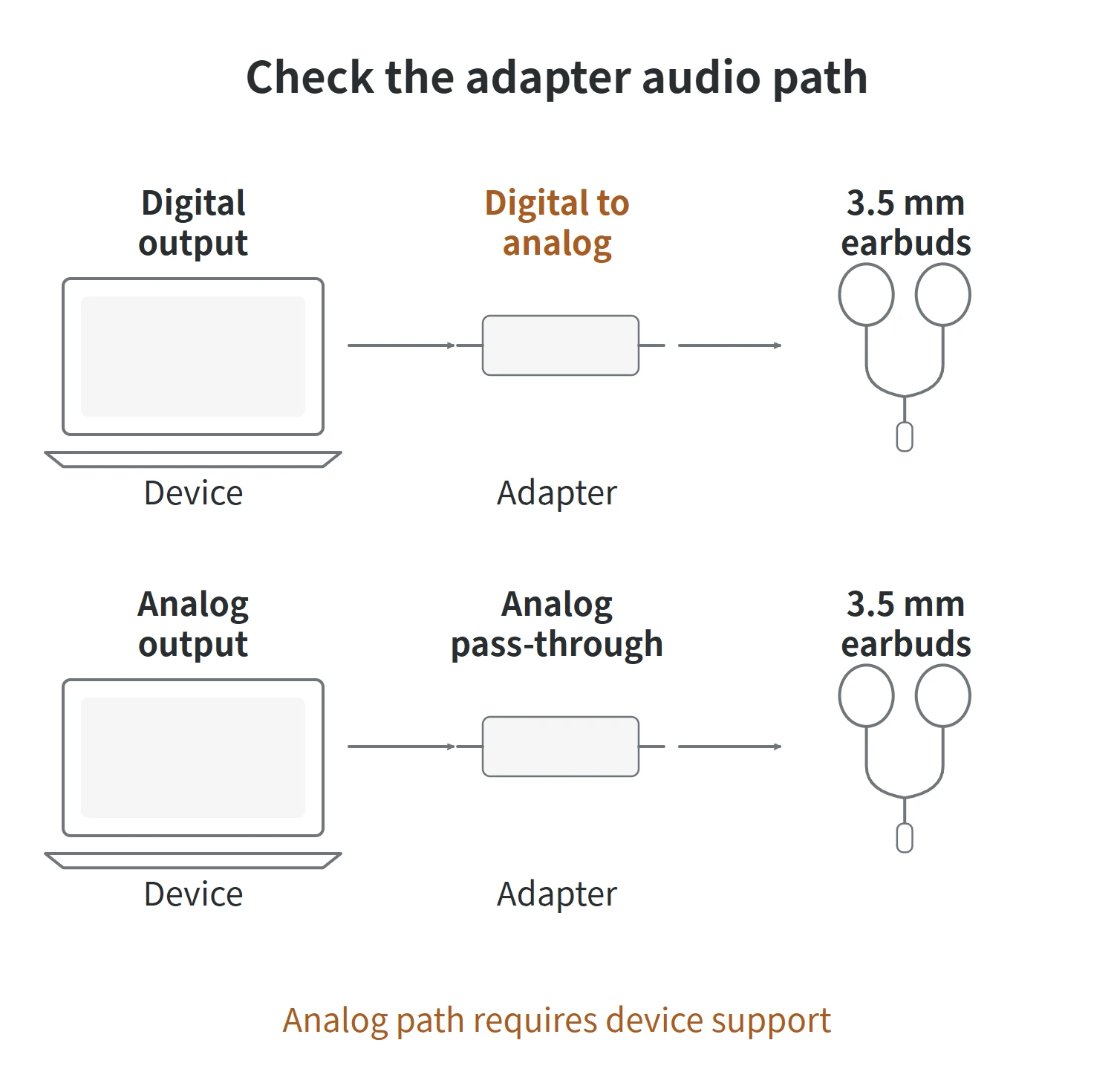
Android’s USB audio accessory specification requires a digital audio interface, and its USB-C to 3.5 mm adapter specification also requires digital-to-analog conversion. Some phones and tablets do not support analog-only adapters. If you get no sound through an adapter, check which earbuds or adapter are supported by the specific device model before blaming the 3.5 mm earbuds.
USB-C earbuds connected directly to a device also need their specific compatibility information checked. A product page that lists a USB-C connector does not replace an actual playback test on the intended device.
Test Another Pair of Earbuds and Another Device Separately
After confirming the connections, output settings, and compatibility requirements, you can test with alternative equipment. Prepare a pair of earbuds known to work and compatible with the original device. If possible, also prepare another device confirmed to support the original earbuds.
Call the device that initially produced no sound Device A. Keep track of the original earbuds and record whether the initial connection used an adapter. Then carry out two separate tests:
- Try the other earbuds on Device A. Replace the original earbuds with the pair known to work. Keep the same port and audio content, and confirm that the output is directed to the earbuds you just connected. If you use an adapter, keep that same adapter.
- Connect the original earbuds to a compatible Device B. Check that Device B’s media volume and output settings are correct, then listen for sound. A plug that fits does not, on its own, confirm compatibility.
The diagram shows combinations that retain the same adapter. For a direct connection, omit the middle column.
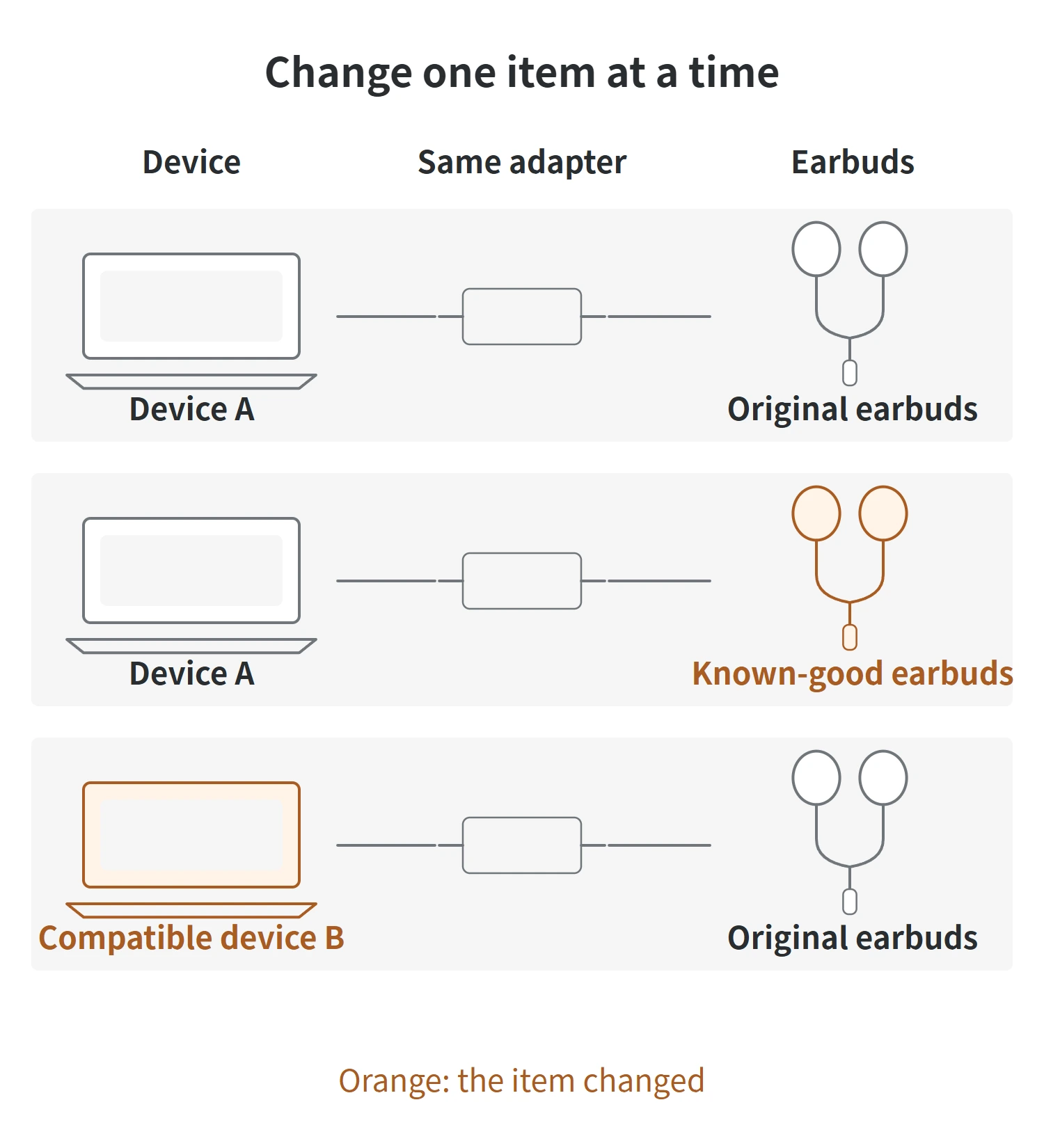
If moving to Device B also requires a different adapter, record that change separately. Even if sound returns, this only shows that the new combination works. It does not isolate or rule out a problem with the original device or the original adapter.
Provided both tests meet the compatibility requirements and no additional components have been changed, interpret the results as follows:
| Device A with the other earbuds | Original earbuds with Device B | What to check next |
|---|---|---|
| Sound | No sound | The original earbuds warrant closer inspection. Contact their supplier for further checks. This result does not identify whether the fault is in the cable, plug, or an internal part of the earbuds. |
| No sound | Sound | Recheck Device A’s output settings, port, and any adapter in the original connection. This result alone does not prove that the device’s audio jack is damaged. |
| Sound | Sound | The earbuds and Device A can each work in the separate test combinations. Recheck compatibility and the connection between the original earbuds and Device A. |
| No sound | No sound | The results are not enough to locate a single fault. Recheck the alternative equipment, compatibility requirements, and playback settings. Ask the supplier or device support team for help if needed. |
If you do not have another pair of earbuds or a compatible device, you can still complete the connection, output, and interface checks above. Do not borrow an accessory merely because its connector looks similar, then use its silence as evidence when its compatibility is unknown.
When to Stop Troubleshooting
If you find a split cable, a bent plug, or liquid inside the device’s port, stop repeatedly plugging and unplugging the earbuds. Do not bend the cable or twist the plug to keep sound playing. Follow the respective manufacturers’ instructions for checking or handling the earbuds and device.
If there is still no sound after these checks, give the relevant supplier the earbud model, playback device model, adapter model, and the results of the two substitution tests. These details explain which combination produces the problem more clearly than simply saying that the earbuds are broken.
If music plays normally but the microphone or inline buttons do not work, check compatibility for those functions separately. Working audio does not guarantee that the microphone and buttons are also compatible. You do not need to restart the entire no-sound troubleshooting process solely because those functions fail.